

Instaspar is a sparring queue manager built for Historical European Martial Arts (HEMA) clubs. Spin up a sparring session on the fly, queue bouts across multiple rings, and keep results around to share with your club afterwards.
Creating a session
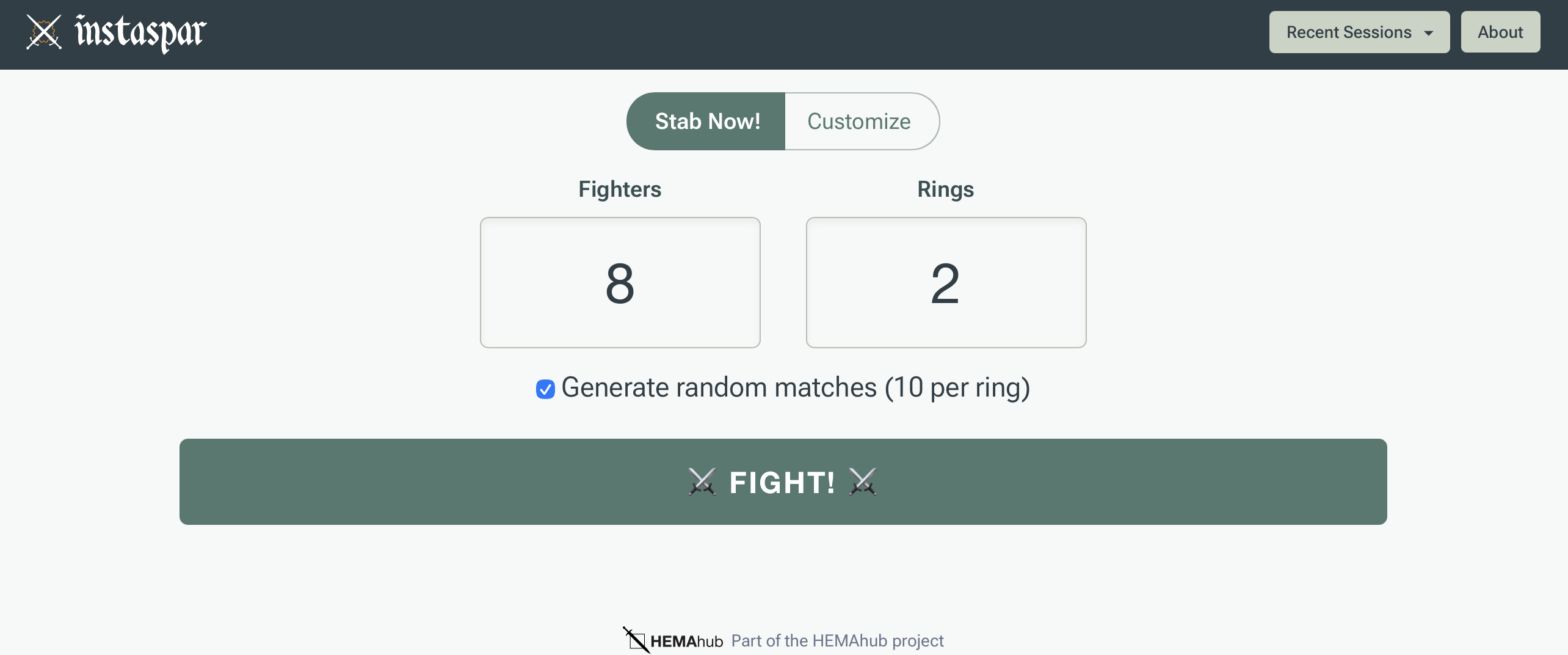
Setting up a sparring session takes just a few seconds. The home page has two tabs: Stab Now! for quick setup and Customize for full control. You can always edit any of the settings during the bout if you just want to get started.
Quick setup (Stab Now!)
The fastest way to get started. Just set the number of fighters and rings, and hit FIGHT!. Fighters will be named "Fighter 1", "Fighter 2", etc. and rings will be named "Ring 1", "Ring 2", etc. You can rename them later from the session page. Check Generate random matches to automatically create 10 random bouts per ring so you can start sparring immediately. Your quick setup preferences are saved so they'll be pre-filled next time.
Custom setup (Customize)
For full control, switch to the Customize tab. Give your session a name (or keep the default, which uses today's date), add your rings and fighters, tweak the timing and theme settings, and hit FIGHT!. Then it's stabbin' time.
Session name
The session name defaults to the current day and date (e.g. "Monday (02/17/26)"). You can change it to whatever you like: your club name, the event name, or your mom's maiden name. Your wildest naming dreams can be made real.
Rings/Locations
Rings represent the physical sparring areas at your venue. You can add up to 8. When the session is running, Instaspar automatically assigns bouts to available rings so multiple bouts can run simultaneously. If you only have one sparring area, just use a single ring. Instaspar will remember your ring names for the next time you set up a session.
Timing settings
The timer controls the rhythm of your sparring rounds. You can configure four values:
- Round length – How long each bout lasts (default: 3 minutes).
- Round warning – A warning sound plays this many seconds before the round ends (default: 30 seconds).
- Break length – Rest time between rounds while fighters swap in and out (default: 60 seconds).
- Break warning – A warning sound plays this many seconds before the break time ends (default: 10 seconds).
These settings are saved to your browser by Instaspar so they'll be pre-filled next time you create a session.
Theme settings
You can customize the look and sound of your session:
- Color theme – Choose the colors for the UI controls. The color theme can also be changed during the session if desired.
- Sound theme – Sounds play automatically at round start, round end, warnings, and when the queue finishes. Preview the available sound packs below:
| Default | |
| Voice | |
| Mortal Kombat | |
| Retro | |
| Beeps | |
| Street Fighter II | |
| Coach's Whistle |
Adding fighters
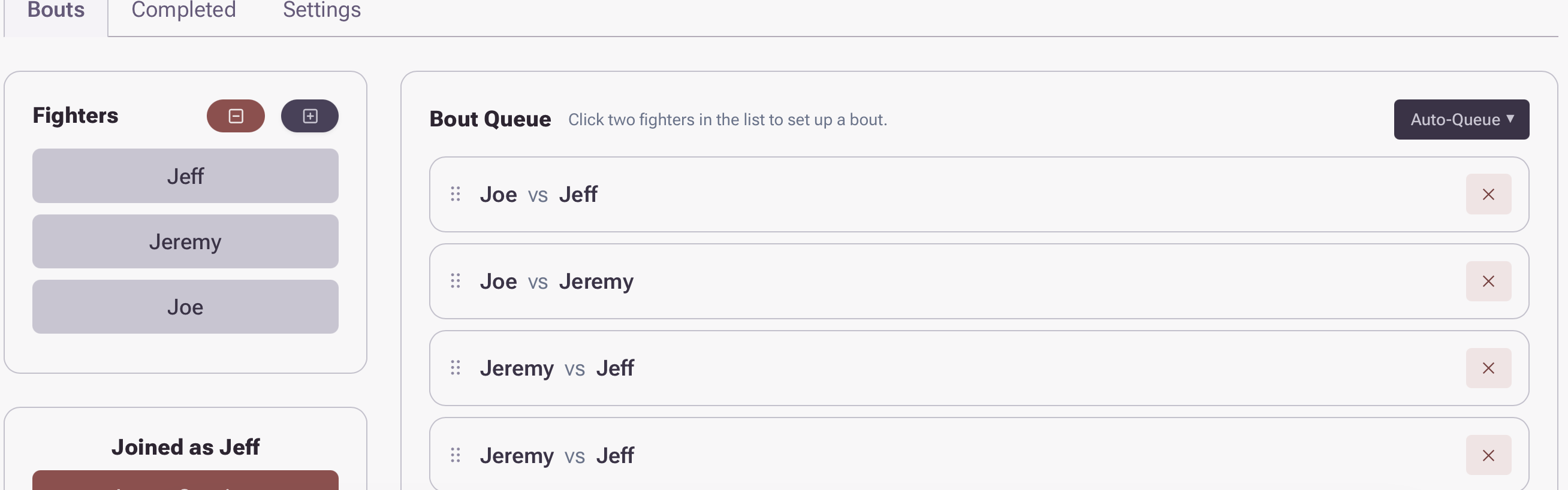
Swords can't fight without fighters swinging them! There are three ways to add fighters to a sparring session:
- During setup – On the session create form, use the Fighters section to pre-populate the roster. Click the Add Fighter button and type in each fighter's name.
- While the session is active – Once a session is created, the operator can add fighters at any time using the + button in the Fighters panel. New fighters are immediately available for participation in bouts.
-
Scan QR code – Every session displays a QR code that fighters can scan with their phone to join the session themselves. The QR code appears in two places: in the lower-left of the operator view or the display view when the session is idle.
When someone scans the code, they'll be taken to a simple form where they enter their name and tap Join. They'll be added to the roster and can see the session's progress from their phone. They can also leave the session at any time from their device.
Setting up bouts
Manual creation
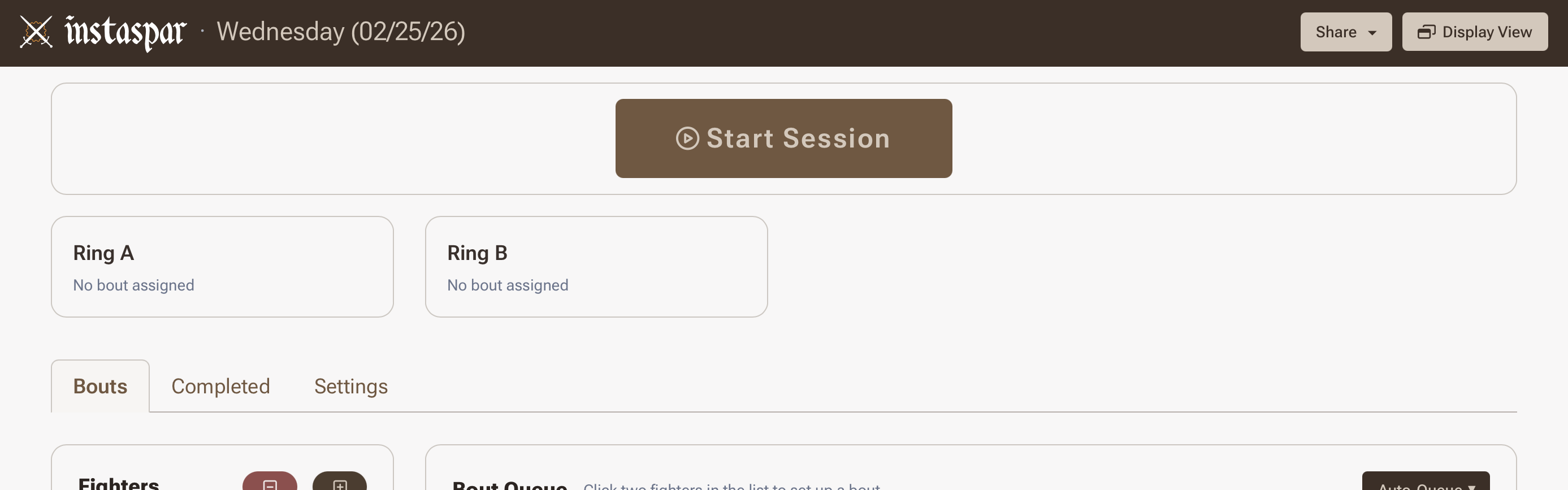
To create a bout manually, tap two fighters in the Fighters panel. After selecting the first fighter, their name appears in a "vs" display. Select the second fighter and the bout is automatically added to the queue. You can reorder bouts in the queue by dragging them.
Auto Queue
For faster setup, use the auto queue options to generate bouts automatically:
- Pool – Generates every possible matchup between all active fighters (round-robin style). Use this when everyone should fight everyone.
- Random 10 – Generates 10 bouts sampled from your roster. The same matchup can appear more than once. Use this for casual sparring nights where you just want to keep things moving.
- Repeat Queue – Duplicates all currently pending bouts and appends them to the end of the queue. Useful if you want to run the same set of matchups again (e.g., best-of-two).
Running the session
Starting time and rounds
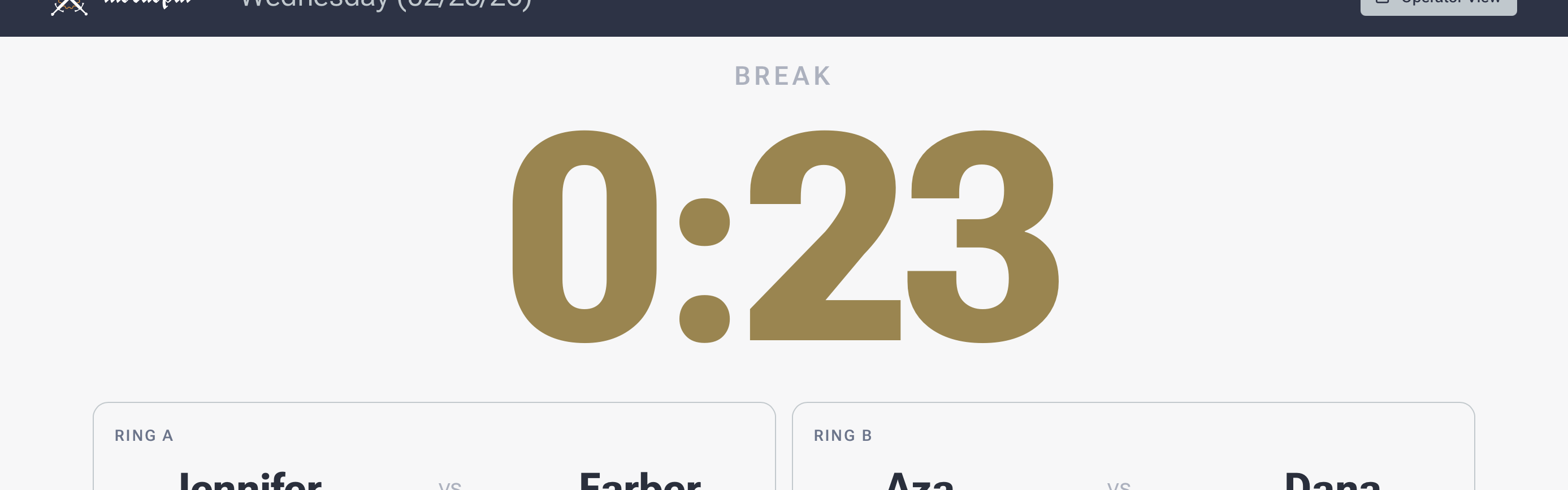
When your queue is ready, hit Start Session. Instaspar assigns the first batch of pending bouts to your available rings (ensuring that no fighter is double-booked in the same round) and starts a break timer so fighters can get into position. When the break ends, the round timer begins.
At any point during a round, you can Pause and Resume the timer. When you're ready to move on, Advance Round completes the current bouts, assigns the next set from the queue, and starts another break. This cycle repeats until the queue is empty.
Scoring
While a bout is in progress, you can click the bout in the operator view to bring up the bout view. From there, you can track scores using the + and − buttons next to each fighter's name to manage points. Scores update in real time for everyone viewing the session (including the display view).
NOTE: Scoring is entirely optional, so you can skip it entirely if you just want to manage the queue and timer.
The display view
The display view is a dedicated full-screen view for showing bouts and scores that updates in real-time. To show it, click the Display View button in upper right of the session page. If you have a second display for a larger screen or projector, drag the new window that pops up to that screen and maximize it.
Removing fighters
The operator can remove a fighter using the − button next to their name in the Fighters panel. Removing a fighter automatically deletes any of their pending bouts from the queue. Completed bouts and scores are preserved for the session history. Fighters who joined via QR code can also remove themselves by tapping Leave Session on their phone.
PROTIPS
- There is a list of your 10 most recent sessions on the home page in the upper right. Keep in mind this data is stored in your browser, so if you delete cookies or something, you will lose that list!
- Your timing settings, ring names, and recent sessions are also saved in your browser so setup is faster next time.
- You can add fighters and queue bouts at any time, even while a round is running.
- Put the display view on a big screen so everyone at the venue can follow along.
- Share the session link with your club afterwards so people can review their results.